 How to save to Kindle
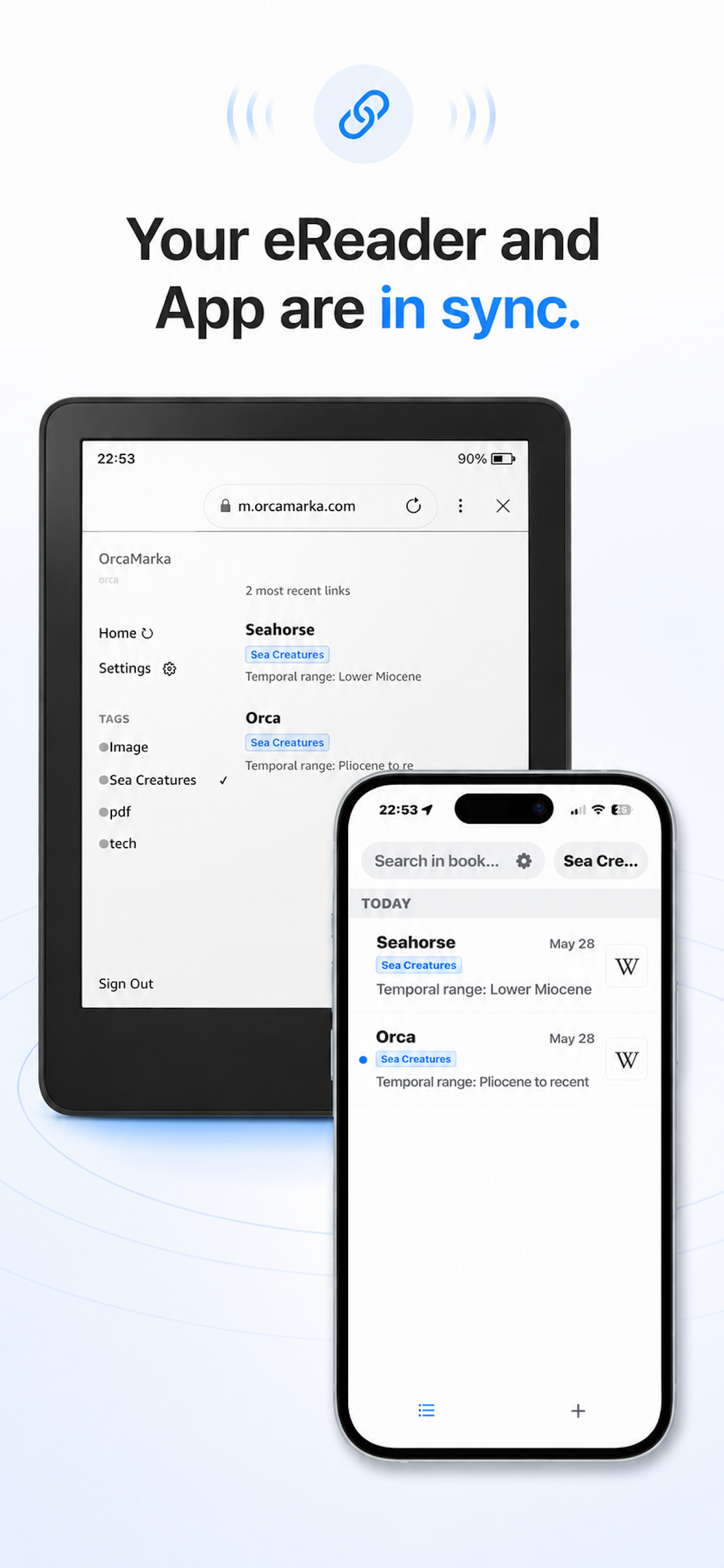

Copy the website link or text you want to upload into your phone's clipboard.
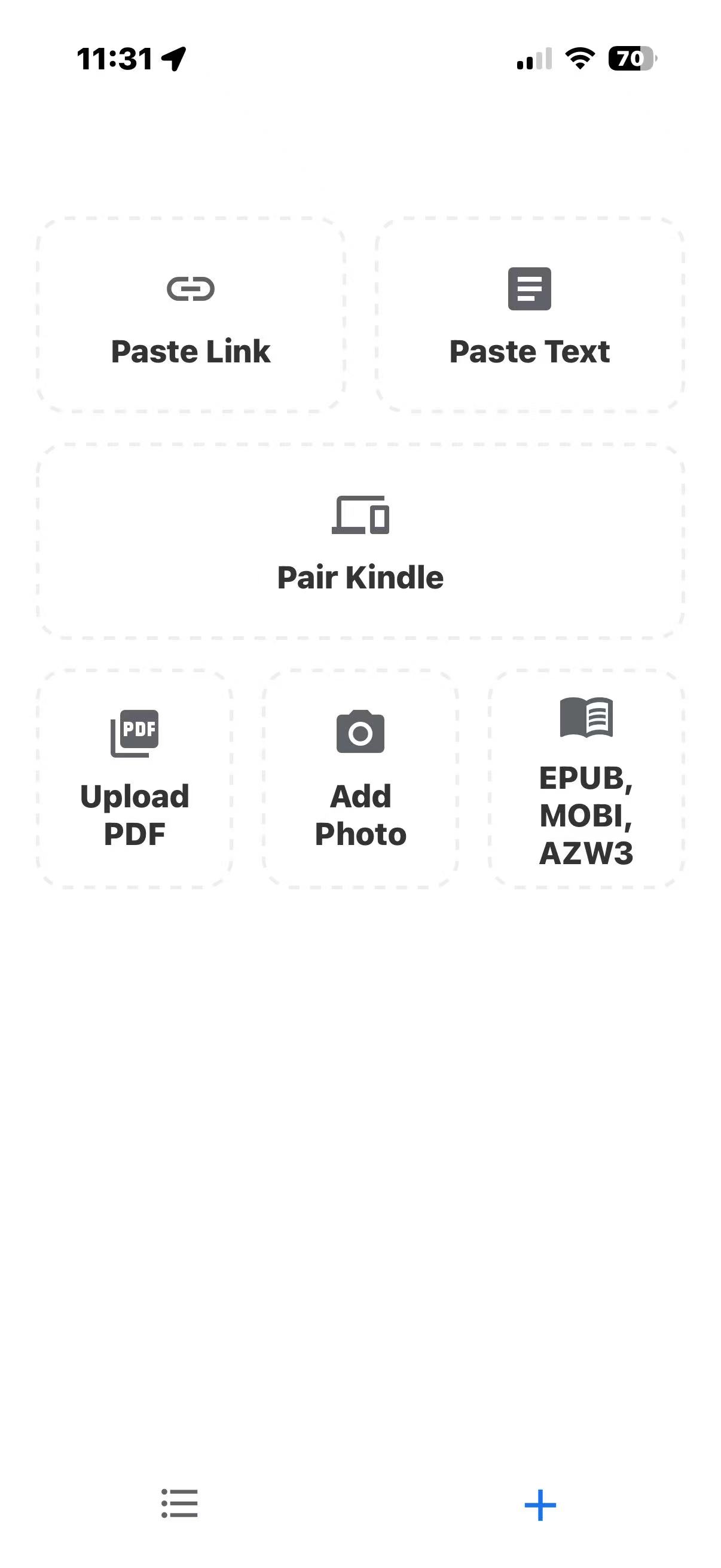
Add links, text, or PDFs by clicking the plus (+) button. The app will automatically read the content you copied in step 2 from your clipboard.
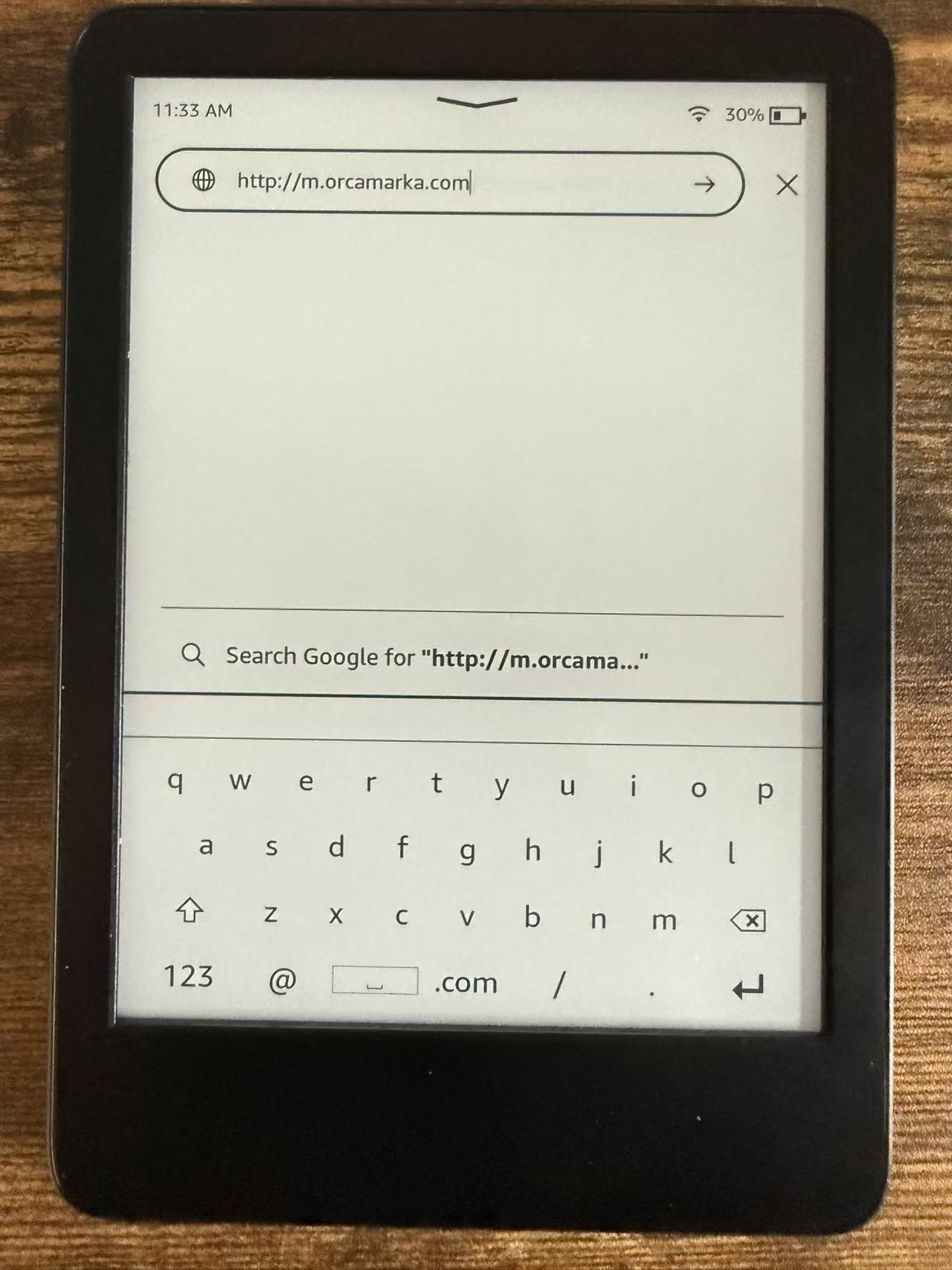
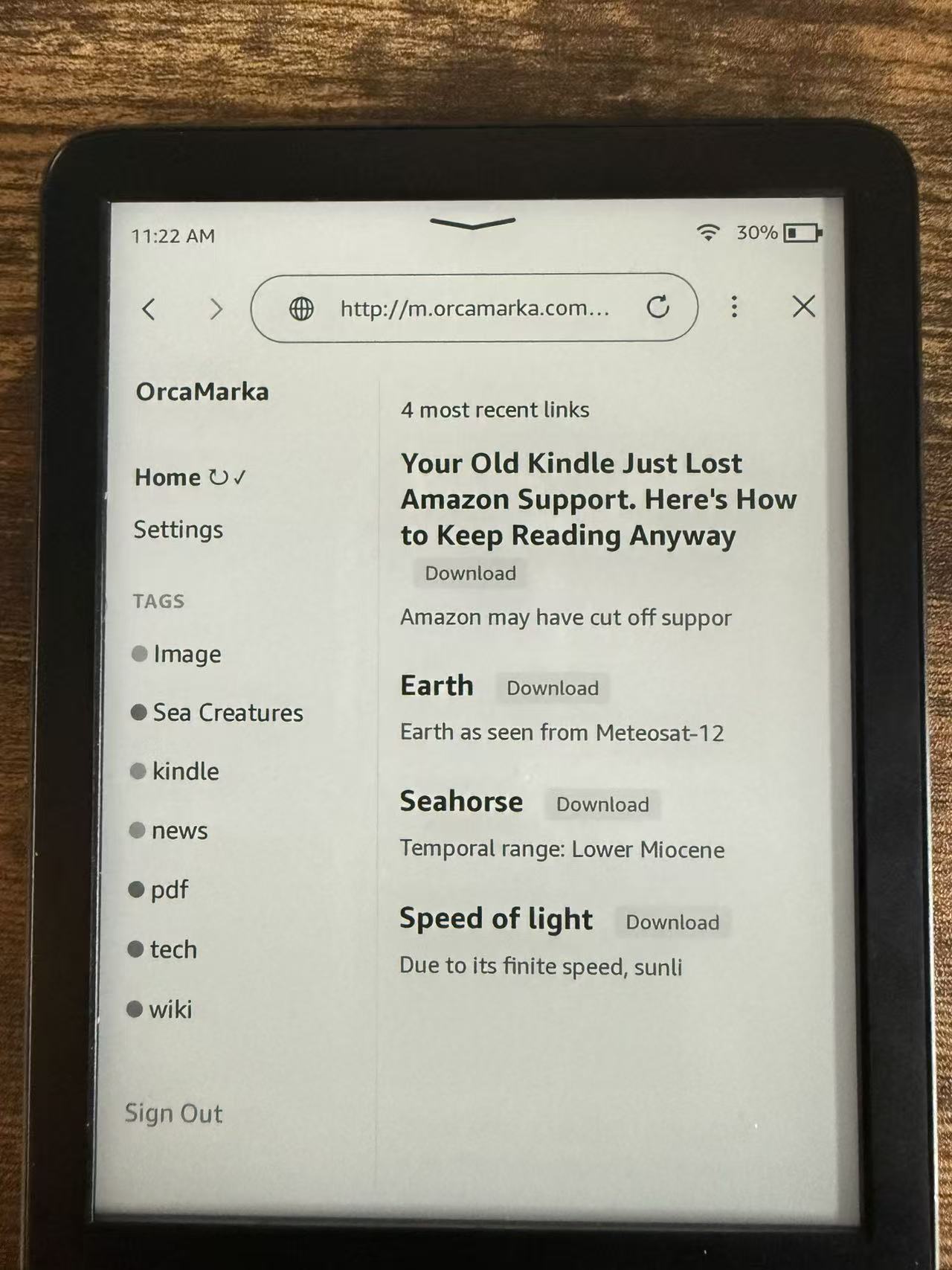
Open your Kindle's web browser and go to http://m.orcamarka.com. This will show a pairing QR code. (If your Kindle is a newer version, you can use https://m.orcamarka.com instead.)
Use the OrcaMarka mobile app on your cellphone and tap the "Pair Kindle" option to scan the QR code displayed on your Kindle screen.
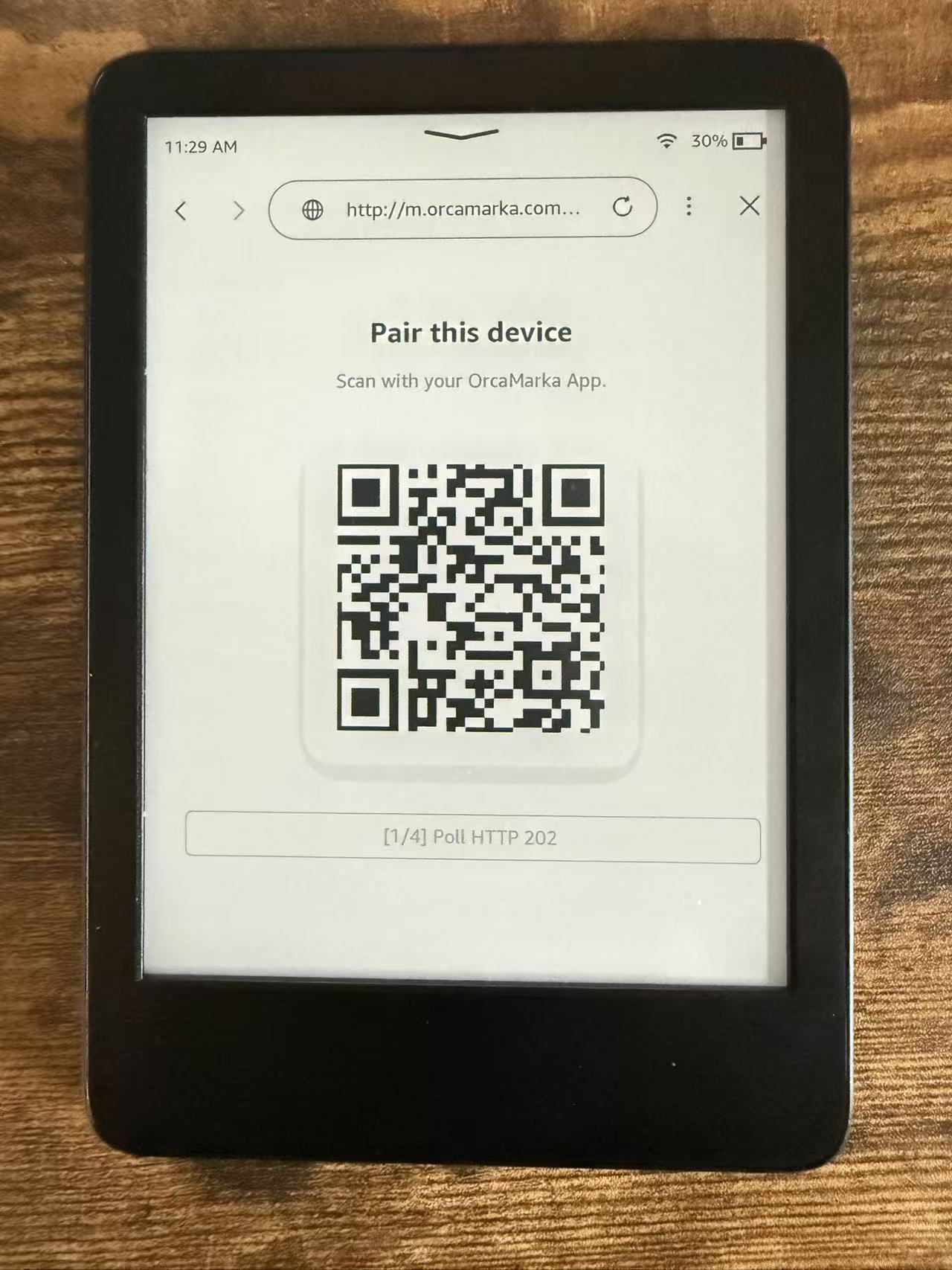
Keep scanning until you are automatically logged in and see your synchronized reading book list loaded on your Kindle!
If you use a laptop or desktop version of Google Chrome, you can download the official Chrome extension to quickly clip any webpage or selected text straight to your Kindle with a simple right-click.